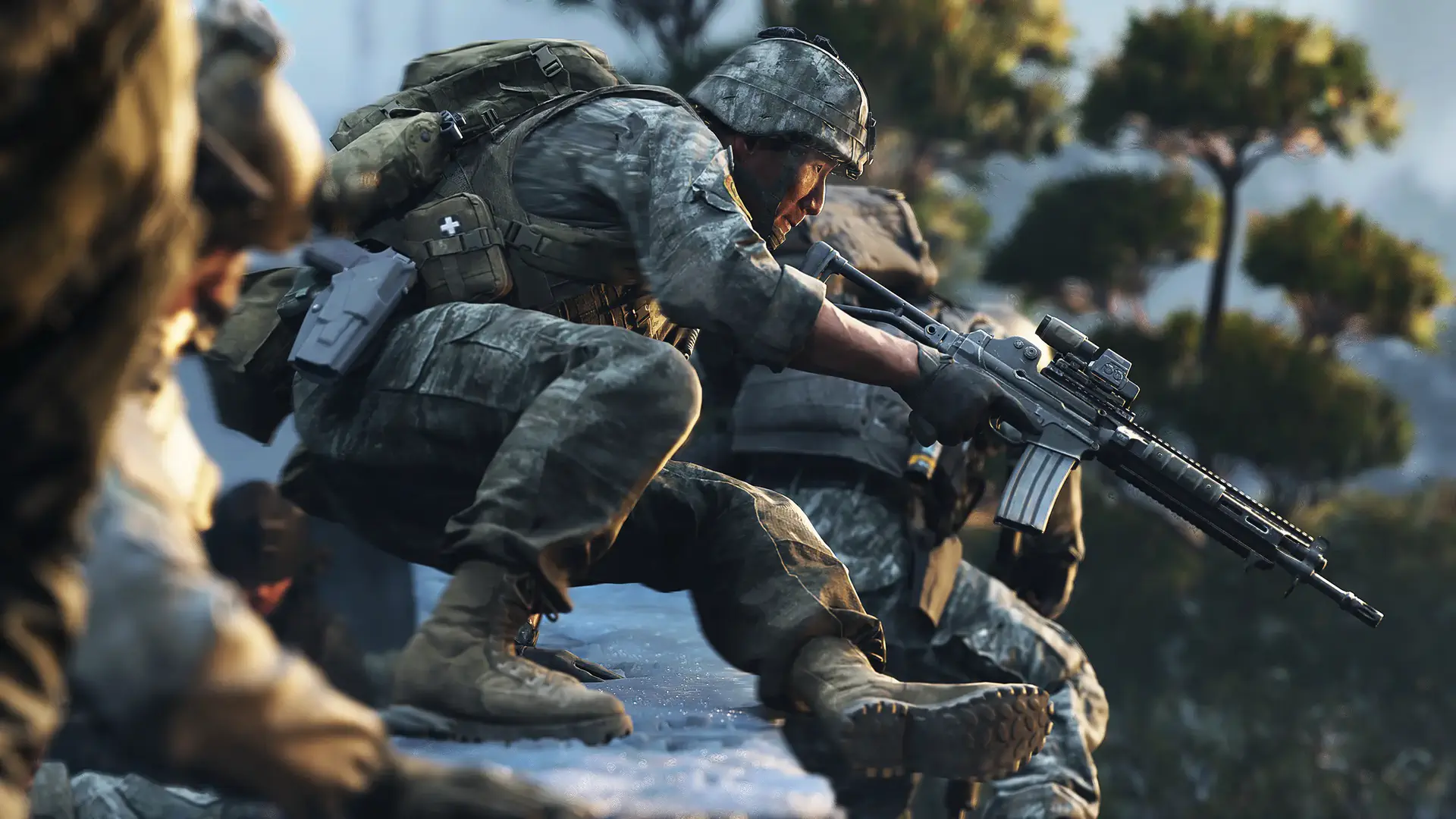
Fixing errors, crashes, and Secure Boot issues in Call of Duty: Modern Warfare 4 can require very different approaches. Sometimes verifying game files or installing a missing Campaign content pack is enough. Other problems require digging into your PC settings. In this guide, I've put together fixes for launch errors, TPM, Secure Boot, and connection problems, along with workarounds for issues that have already been confirmed.
The MW4 community has already run into quite a few problems, including Secure Boot errors. Before trying to fix anything, though, you need to identify exactly when the issue occurs. If the game closes immediately after launch, I recommend starting with the game files and background applications. If the error message mentions Secure Boot, TPM, or Attestation, we'll move on to checking your PC's security configuration.I also strongly recommend writing down any error codes and noting which game modes trigger the problem. Check whether the latest update has finished downloading and whether the required content is installed.Image unavailable
Modern Warfare 4 Won't Launch or Closes Immediately
If MW4 crashes to the desktop without an error message, start by restarting your computer. Then open the launcher, install any pending updates, and try again. If the button changes from Play to Stop but the game still refuses to start, I recommend verifying the integrity of the game files. Here's how to do that if you haven't tried it before.
How to Verify Game Files on Steam
In Steam, go to Library > Call of Duty > Properties > Installed Files > Verify integrity of game files. Wait for the verification process to finish and for any missing files to download. While it's running, don't start a disk check or another game at the same time. Once the process is complete, try launching MW4 again.Image unavailableIf Steam reports a missing executable, an issue players have also discussed on Reddit, open your antivirus protection history and check whether the game's executable was quarantined. If it was, restore the file from quarantine and add an exception for it in your antivirus software.
Which Background Applications Should You Check?
I recommend closing overlays and recording software while troubleshooting. Activision itself warns that these applications can interfere with launching the game and even cause crashes. Restart your PC and try running the game without them. If that fixes the problem, you can re-enable the applications one at a time to identify the conflict.If the error keeps coming back, the developers also suggest testing the game after uninstalling the conflicting application. Save its settings first if you might need them later. There's no reason to uninstall every background program indiscriminately. Start with the one you installed or updated shortly before the problem appeared, and test the game after each change.
Campaign Launch Button Missing in Xbox on PC
The developers have confirmed this issue. According to Activision, some players cannot see the Campaign button in COD Home after installing the game. Check whether Call of Duty: Modern Warfare 4 - Content Pack 1 is installed. If it's missing, install it, wait for the download to finish, and reopen the game.If Content Pack 1 is already installed but the button is still missing, check the official known issues list. At the time of checking, the problem is still being investigated, and no separate fix has been released. I'll update this guide when an official solution becomes available.Image unavailable
TPM 2.0 Error: How to Check and Enable It
Press Win + R, type tpm.msc, and press Enter. In the window that opens, check the TPM status and specification version. You want to see that the TPM is ready for use and that its specification version is 2.0. If Windows displays "Compatible TPM cannot be found," the feature may simply be disabled in your firmware, so don't rush out to buy a separate TPM module.Image unavailableInstead, consult your motherboard or laptop manufacturer's instructions and find the section on enabling TPM. On Intel systems, the setting may be called Intel PTT or Intel Platform Trust Technology. On AMD systems, look for AMD fTPM. You may also encounter names such as Security Device Support or Trusted Computing. Enable the relevant feature, save your changes, and check tpm.msc again after Windows starts.Image unavailableBefore changing firmware settings, make sure you have your BitLocker recovery key if your drive is encrypted. You may need it after changing security settings. I don't recommend choosing the option to clear the TPM, since that's a separate operation and isn't required to enable the module normally. If you can't find the setting, look up the exact model of your device on the manufacturer's website.
Secure Boot Is Disabled or Unsupported
This problem also affects players with a wide range of PC configurations. First, press Win + R, type msinfo32, and open System Information. Find BIOS Mode and Secure Boot State. Secure Boot requires UEFI mode. If your PC already uses UEFI but Secure Boot is disabled, find the manufacturer's instructions for enabling the feature.Image unavailableIn Windows 11, you can access firmware settings through Settings > System > Recovery > Advanced startup > Restart now. Then select Troubleshoot > Advanced options > UEFI Firmware Settings. In the firmware interface, locate Secure Boot using your device's manual, enable it, and save your changes. After restarting, open msinfo32 again and check its status.If BIOS Mode shows Legacy or Secure Boot is unavailable, first check whether your boot mode and system disk are compatible. Call of Duty requires UEFI and GPT. Simply switching from Legacy to UEFI without preparing the drive can prevent Windows from booting. Back up important files and follow your manufacturer's instructions before making the switch. Don't randomly change CSM settings, disk partitions, or Secure Boot keys.
Secure Boot and TPM Are Enabled, but Attestation Still Fails
To troubleshoot this issue, download the Call of Duty Secure Attestation Wizard from the link in Activision's official instructions. As of October 22, the current version is listed as 1.3.0, dated October 21, 2026. Extract the archive, run CODSecureAttestationWizard.exe, and perform the scan. The results will show which setting needs attention.If you see Authorization Key Failed, the official wizard offers a Generate Key option and asks for permission to run enrollaik.exe. Only approve this prompt when using the tool downloaded directly from Activision. For TCG Event Log Failed, install Windows updates and restart your PC. If the message mentions firmware, check for a BIOS update for your exact motherboard model. You don't need to clear the TPM or delete system keys on your own.When updating your BIOS, use the firmware file and installation procedure provided by your device manufacturer. If BitLocker protects your PC or drive, make sure you can access the recovery key beforehand and follow the manufacturer's precautions. After updating, check the settings again and rerun the wizard.Image unavailableFor Modern Warfare 4, Activision lists TPM 2.0 and Secure Boot as requirements for accessing all online modes. A failed attestation check may therefore explain why you can't get online even though the game itself launches normally. Save the wizard's results in case you need to contact support.
Modern Warfare 4 Crashes During Gameplay or Shows a DirectX Error
Update your graphics driver from NVIDIA, AMD, or Intel's website and restart your PC. Check the appropriate driver version against Activision's driver recommendations. If crashes started immediately after a driver update, try the recommended version rather than installing an arbitrary older release. Then replay the section where the crash occurred.For troubleshooting, lower the graphics settings and close demanding background applications. See whether the error occurs in the same scene or after roughly the same amount of time. Make sure the ventilation openings aren't blocked and the system isn't overheating. These steps can help narrow down the cause, but a DirectX Error message alone doesn't identify a single faulty component.Don't download individual DLL files from third-party websites or use them to replace game files. If repairing the installation, installing the recommended driver, and running without overlays don't help, save the full error message and submit a crash report. Include your PC specifications, driver version, and a description of when the crash occurred. That will give support the information they need to investigate your specific issue.
Error 0x00001338 on Launch
Players have reported this code in connection with Campaign launch crashes, but there is no single confirmed fix. Start by verifying the game files, using the recommended graphics driver, and disabling conflicting applications. Write down the complete error code, including any additional values in parentheses. The short code 0x00001338 on its own isn't enough to compare individual cases.Advice from the old beta may not apply to the current build. I don't recommend terminating random game processes or changing system settings just because someone with the same short error code said it worked for them. If the crash persists, attach the full message to your crash report. Also mention whether you can reach the main menu and whether the problem occurs only when entering the Campaign.
Can't Connect to Servers or Keep Getting Disconnected
Open Activision's Online Services status page and select Modern Warfare 4 and your platform. If there's a service outage notice, wait for service to be restored. Check your platform's own services as well if you can't sign in to your account. Reinstalling the game client during a widespread connection outage usually isn't necessary.When the services are working, restart the game and your router, then try connecting again. To test your connection, connect your PC or console using an Ethernet cable, pause downloads on other devices, and compare the results. If the wired connection is stable, focus on improving your Wi-Fi. If you experience disconnects in other online games too, check your connection with your internet provider.If you get a sign-in error, pay attention to which stage fails: platform authentication, your Activision account, or the connection to the game itself. Don't unlink accounts or create a new one before investigating the actual error message. Write it down in full and consult the appropriate platform or Activision support section.
How to Fix the First DMZ Order, Gear Up, Not Completing
Activision has confirmed an issue affecting some players who sold items required for the first Order, including backpacks, armor vests, and medkits. As a workaround, join a friend and deploy into DMZ together. According to the official description, your progress should be restored once you enter Hajin. If you're experiencing this specific issue, try the published workaround first.Until the problem is fixed, keep the items required for the Order and don't sell them early. Check your objective after deploying. If it doesn't update, submit a bug report that includes the Order name and what you did before the issue occurred. Reinstalling the entire game isn't part of the published workaround.
How to Fix Crashes on Consoles
Close the game completely, restart your console, and check for system updates. On PS5, go to Settings > System > System Software > System Software Update and Settings. On Xbox, use Settings > System > Updates. After installing any updates, launch the game again and test the affected mode.Image unavailableIf your console freezes, restart it according to the manufacturer's instructions. Don't just put it into Rest Mode. Also check the available storage space and ventilation. If the game continues crashing after the updates, save the console error code and submit a support request specifying the game mode and when the crash occurred.