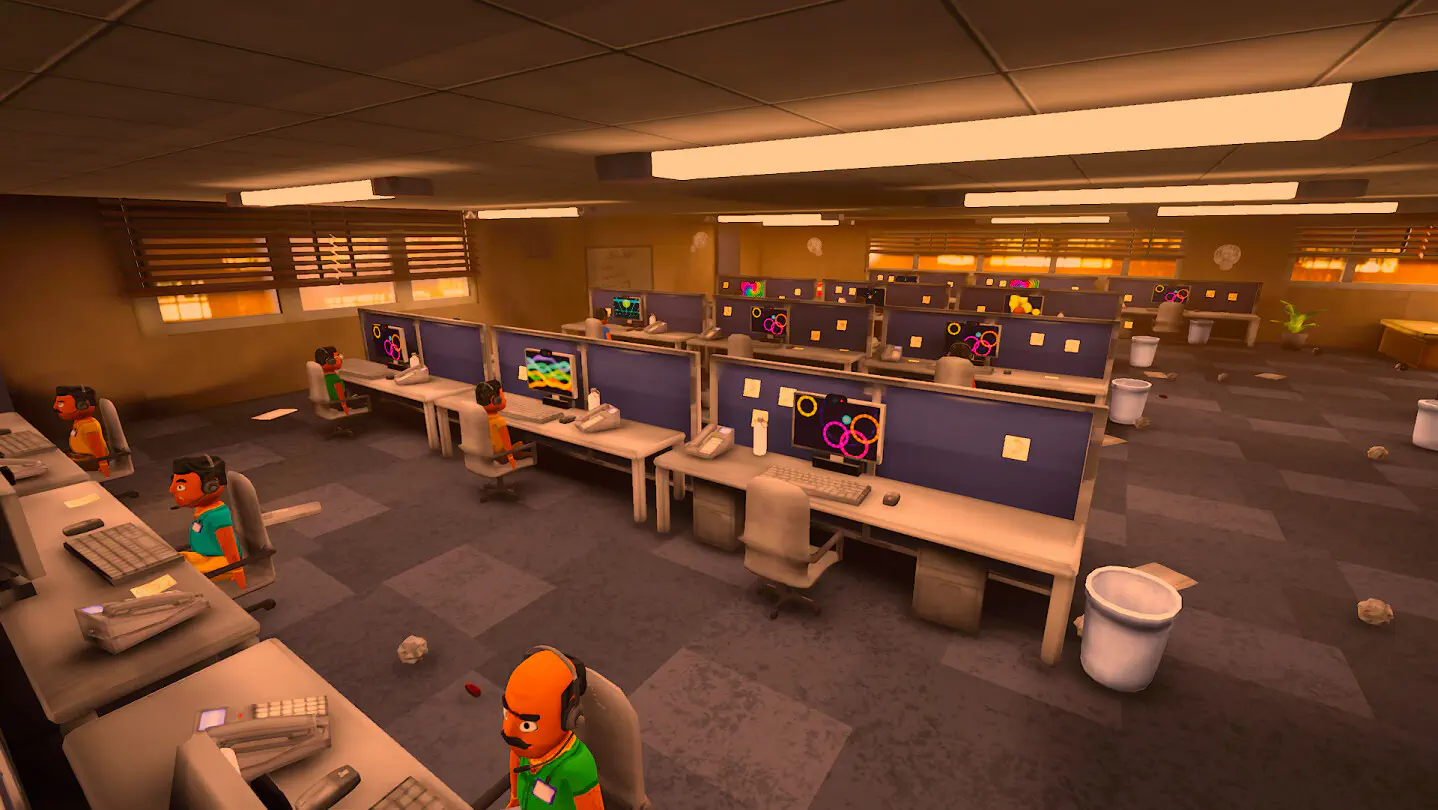
In Scam With Your Friends, you can put together your own call center crew or join other players. This guide explains how to create a lobby, invite friends through Steam, and join a session using a code. We'll also cover what to check if an invitation fails, the game reports a version mismatch, or you can't connect to a session.
In co-op, one player hosts the session and everyone else joins. A lobby can hold up to eight players, including the host. You don't need to fill every slot. You can play as a duo, a trio, or any other group within that limit. Everyone needs access to the Steam version of the game and an internet connection.Before creating a lobby, we recommend checking for updates. Close the game, let Steam finish any downloads, and launch it again. You'll also need to accept the user agreement when you first start the game. Until you do, hosting, joining, and Steam invitations are unavailable. Once that's done, decide who will host and move on to inviting your friends.
How to Create a Lobby in Scam With Your Friends
From the main menu, choose the option to host your own online session. If you're playing with a group of friends, set the lobby visibility to private. If you create a public lobby, other players will also be able to join through the public lobby browser. Check the number of available slots to make sure there's room for everyone.Image unavailableOnce the session is created, find its code or invitation link and send it to your friends. We recommend sharing the invitation with everyone straight away and waiting for them to connect. Stay in the session while your friends are joining. Before starting your shift together, make sure everyone has entered the right lobby.
How to Join a Friend Using a Lobby Code
Ask the host to send you their session code. In the join menu, select Join by code, paste the code, and confirm. If you get an invalid-code message, copy it again from your friend's message. If it still doesn't work, ask the host to copy a fresh invitation from their current session.You can also paste a full Steam lobby invitation link into the same field. If your friend sent a link rather than a short code, copy the entire thing. Once connected, check that you can see the other members of your group. You can now take a desk and start handling calls.Image unavailable
How to Invite a Friend Through Steam
Create a game session first. Then open the Steam overlay with Shift + Tab, find your friend in the friends list, and use the option to invite them to the game. They'll need to accept the invitation through their Steam account. If it doesn't work, send them the session code or link and have them join through Join by code instead.If the overlay won't open, go to your Steam Library and open the game's Properties, then General. Check that the Steam Overlay is enabled for the game. If you've changed the keyboard shortcut, check Steam's In Game settings to see what it's set to. You can find more information in the Steam Support guide.
How to Find a Public Lobby
If your friends aren't online yet, you can join other players through the public lobby browser. Use the country and player-count filters to find a suitable session. You should also enable My version first sorting. This puts lobbies running the same game version as yours at the top of the list.If you meet someone in a public session and want to play together again, open the player list. You'll find an Add Steam friend button next to eligible profiles. Once you've added them, you can arrange another session and send a new invitation. For a regular group of friends, it's usually easier to host a separate lobby.
What to Do if Your Friend Can't Join
Start by reading the error message. If the game reports a version mismatch, everyone should quit and install the latest update through Steam. The host can then create a new session and send an updated invitation. If the problem continues, check whether anyone is launching an old Playtest client instead of the purchased game.If the code is rejected, copy the invitation again and make sure the host is still in the correct lobby. If the session is full, the host will need to free up a slot or create a new lobby with enough room for your group.If a Steam invitation doesn't work, try joining by code instead. If that also fails, close the game, restart Steam, and create a new session. We also recommend changing hosts as a test. Have another member of your group create the lobby. If the error persists, save the exact message and tell the developers at which step the connection fails.
The Game Says High-Quality Voices Aren't Downloaded
Before hosting or joining a lobby, you may see a warning that high-quality voices aren't ready yet. For Russian, we recommend waiting for the Qwen3 TTS download to finish in the main menu, then trying to connect again. If your system doesn't support Qwen3 or the download fails, check the voice settings and any option to continue offered in the warning itself.
Your Friend Joined, but Callers Won't Respond
If you're already in the same office, check for AI service error messages and review the speech settings. Try typing a message to a caller instead of using your microphone. If typing works, check the selected microphone, language, and speech recognition under the Speech tab. If callers aren't responding to anyone on the team, the host should check their connection and AI settings.If the host has manually configured a personal OpenRouter key and the game says it's missing or rejected, fix the key or switch back to the Official Backend. You don't need a personal key for a normal session. If the service is temporarily unavailable, try again later. Connection updates and fixes are published in the game's Steam news feed.