Guides
Gears of War: E-Day Co-op Guide: How to Play With Friends, Split-Screen and Crossplay

Contents
- How many players does the Campaign support?
- How to invite a friend in Gears of War: E-Day
- How crossplay works between Steam, PC, and Xbox
- How to play split-screen co-op
- Is split-screen available on PC?
- Which characters can you choose in Campaign co-op?
- Can every player choose a different difficulty?
- Who can pause the game, and what gear carries into another player's Campaign?
- Do you need Game Pass for online co-op?
- How to play Horde Siege with friends
- What to do if a friend cannot join
Gears of War: E-Day supports up to four players in online Campaign co-op and two-player split-screen on Xbox Series X|S. Below, we explain how to invite friends, connect Steam and Xbox players through crossplay, and start a local Campaign. We also cover Game Pass requirements, character selection, individual difficulty settings, and what to check when a friend cannot join.
How many players does the Campaign support?
The online Campaign supports up to four players. If you want to play locally with someone on the same couch, you need an Xbox Series X|S and two controllers because the console version supports two-player split-screen. PC does not support local split-screen on either Steam or the Xbox version. Decide how your group plans to connect before everyone gets together, otherwise you may have a second controller ready with no local PC mode to use it in.The available Campaign options are:- Xbox Series X|S - up to four players online or two players locally in split-screen.
- PC, Xbox app / Microsoft Store version - up to four players online.
- PC, Steam version - up to four players online.
How to invite a friend in Gears of War: E-Day
We recommend deciding who will host the session before you start. For a regular co-op playthrough, it is much easier to keep returning to one host's Campaign save than to work out which chapter the group has already completed every evening. The host chooses the Campaign state and brings the others into the lobby through the game's Social panel. Once everyone has joined, the group can choose characters and start the Campaign.To create an online co-op group:- Open Campaign and choose a new playthrough or the save you want to continue.
- Open the Social panel with your friends list.
- Select a friend and send a party invitation.
- Wait for them to appear in the lobby, then invite up to two more players if needed.
- Choose your characters, set each player's difficulty, and confirm that everyone is ready.
- Launch the selected Campaign chapter.
How crossplay works between Steam, PC, and Xbox
Xbox Series X|S, the Xbox version on PC, and Steam can play together. You do not need to buy the same storefront version just to share a Campaign. Steam also supports optional Microsoft account linking for roaming saves, friend connections, and cross-platform invitations. If you want to invite Xbox friends from Steam, link the account you actually plan to use for cross-platform play.On Steam, the process is:- Open the game's Social panel.
- If your profile is not linked yet, choose Link Account.
- Sign in to the Microsoft account you want to use for cross-platform friends and progression.
- Add your friend using their Xbox gamertag.
- Return to Social and send the invitation.
How to play split-screen co-op
Local co-op requires an Xbox Series X|S and two controllers. Connect the second controller while you are still in the menus so you can confirm that it is recognized before combat begins. The second player can use another Xbox profile. Guest-style local joining has also been observed, but for an ongoing playthrough we recommend a proper account because separate long-term progression for a guest profile is not clearly documented.To start split-screen:- Turn on the Xbox and connect both controllers.
- Launch Gears of War: E-Day with the first player's profile.
- Use the second controller to sign in with the second player's profile or an available guest option.
- Open Campaign and follow the prompt that lets the second player join.
- Make sure both players appear in the lobby.
- Choose characters and start the Campaign.
Can two split-screen players join online friends?
Some launch-era co-op guides report that a split-screen pair can join online players, potentially allowing a two-local-plus-two-online four-player squad. However, the official Xbox page clearly confirms only two-player console split-screen and up to four players online, without fully documenting every mixed local-and-online configuration. If this exact setup matters to your group, assemble everyone in the lobby first and verify that all four slots accept the intended players before starting the chapter.Is split-screen available on PC?
No. PC does not support local split-screen, whether you own the Steam version or the Xbox app version. Switching storefronts does not change that limitation, and connecting two controllers does not add a local Campaign mode. Two PC players need separate devices and an online connection.If one player is on Xbox and another is on PC, use crossplay. For Steam, set up the Microsoft account link if you need cross-platform invitations, then create the group through the Social panel. There is no need for both players to move to Xbox just to share the Campaign.Which characters can you choose in Campaign co-op?
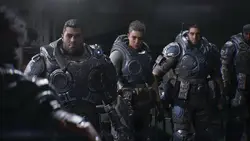
The co-op Campaign is built around the four members of Bravo Squad:- Marcus Fenix.
- Dominic Santiago.
- Mags Carter.
- Lucas Reyes.
Can every player choose a different difficulty?
Yes. Each co-op player can set their own Campaign difficulty independently. This is especially useful when one player is a Gears veteran and another is learning the series for the first time. The game balances relevant health and damage settings per player, so one participant can choose a harder experience without forcing the same difficulty on everyone else.We recommend letting newcomers learn cover movement, Active Reloads, and reviving teammates on a comfortable setting. More experienced players can raise their own difficulty separately. If the group repeatedly stalls at the same encounter, discuss what is actually going wrong before changing everyone's settings. Better positioning and crossfire may solve the issue, while a lower personal difficulty can make sense for the player who is struggling.Who can pause the game, and what gear carries into another player's Campaign?
Only the host can pause a co-op Campaign session. If someone needs to step away, tell the host before the next firefight. The Campaign supports multiple save slots, which is useful if you play with several different groups and do not want one co-op run to overwrite the point used by another group.There is also an important limitation involving progression and session state. In published co-op testing, a player who had already finished the story joined a less-progressed host and only had access to the weapon, armor, and equipment upgrades available in that host's Campaign state. This does not mean the joining player permanently loses upgrades from their own save. It means the shared session can restrict what is available based on the host's point in the Campaign.Do you need Game Pass for online co-op?
On Xbox consoles, online Campaign co-op requires a Game Pass subscription that includes online multiplayer. This applies even if you bought the base game separately because console online access is a separate requirement. Check your subscription before meeting up with friends so you do not spend time troubleshooting invitations when the actual problem is multiplayer access.On PC, you do not need a separate console-style online multiplayer subscription. Every player still needs access to the game through a purchase or a qualifying PC Game Pass subscription. If you are using subscription access, it obviously only works while that subscription remains active. Linking a Microsoft account for cross-platform features does not itself grant a game license.How to play Horde Siege with friends
In Horde Siege, your own squad contains up to four players. The shared battlefield can contain three four-player squads at once, for up to twelve players total. This is a separate multiplayer mode, so its 12-player limit does not apply to the story Campaign. Create your four-player squad through Social, then choose Horde Siege and the mission you want to run.Before launching, agree on at least two things: who is responsible for helping downed teammates and who covers the extraction. You do not need a complicated competitive strategy for your first runs, but scattering across the map without coordination makes every objective harder. Pick a difficulty appropriate for your class progression. A successful extraction at a manageable difficulty is more useful than repeatedly failing a mission your squad is not ready for.What to do if a friend cannot join
Do not start by reinstalling the entire game. Check updates, accounts, and multiplayer access first because those steps are faster and often reveal the problem. Change one thing at a time, then retry the invitation so you know which fix actually mattered.- Install all available updates for every player. Make sure nobody has a pending or incomplete download.
- Check the linked Microsoft account. This is especially important for Steam players using cross-platform invitations.
- Confirm the Xbox gamertag. It may not match the friend's Steam display name.
- Check privacy settings. The account needs to allow multiplayer and cross-network interaction.
- On Xbox, verify the subscription. It must include online multiplayer.
- Recreate the party. Send a fresh invitation from the in-game Social panel.
- Restart the game. This can help when the friends list or lobby roster is displayed incorrectly.
Sign in to leave a comment or rate this post.
Comments
Be the first to comment!